728x90
다음으로 레이아웃 매핑에 대해서 학습시킴 (Gemini가 나를)
@override
Widget build(BuildContext context) {
  return Scaffold(
    appBar: AppBar(title: const Text('레이아웃 테스트')),
    body: Padding(
      // 1. 전체 화면 테두리에 16만큼 여백을 줍니다. (Delphi의 BorderWidth 역할)
      padding: const EdgeInsets.all(16.0),

      // 2. 가로로 위젯들을 배치합니다.
      child: Row(
        // 양쪽 끝으로 위젯들을 밀어냅니다.
        mainAxisAlignment: MainAxisAlignment.spaceBetween,
        children: [
          // 3. 좌측 아이템: 세로로 텍스트 2개를 배치합니다.
          Column(
            crossAxisAlignment: CrossAxisAlignment.start, // 왼쪽 정렬
            mainAxisSize: MainAxisSize.min, // 내용물 크기만큼만 세로 공간 차지
            children: const [
              Text('키오스크 주문 (일반)', style: TextStyle(fontSize: 18, fontWeight: FontWeight.bold)),
              SizedBox(height: 4), // 텍스트 사이의 간격을 띄우기 위한 투명 박스
              Text('승인일시: 2026-05-22 15:19', style: TextStyle(color: Colors.grey)),
            ],
          ),

          // 4. 우측 아이템: 결제 금액
          const Text(
            '15,000원',
            style: TextStyle(fontSize: 20, color: Colors.blueAccent, fontWeight: FontWeight.bold)
          ),
        ],
      ),
    ),
  );
}
build에 body내부에서 padding을 넣고 child, children으로 각 위젯들을 배치하는 방법에 대해서 학습함
SizedBox로 공간을 띄우는게 독특고 Column과 Row를 이용하여 가로, 세로 배치에 대해서 알게됨
// 가상의 결제 데이터 리스트
final List<Map<String, dynamic>> orderList = [
  {'title': '키오스크 주문 (일반)', 'date': '2026-05-22 15:19', 'amount': '15,000원'},
  {'title': '키오스크 주문 (포장)', 'date': '2026-05-22 15:30', 'amount': '8,500원'},
  {'title': '앱 주문 (배달)', 'date': '2026-05-22 16:05', 'amount': '22,000원'},
  {'title': '키오스크 주문 (일반)', 'date': '2026-05-22 16:12', 'amount': '4,500원'},
  {'title': '앱 주문 (포장)', 'date': '2026-05-22 16:40', 'amount': '12,000원'},
];
@override
Widget build(BuildContext context) {
return Scaffold(
appBar: AppBar(title: const Text('주문 내역 리스트')),
// 이전의 Padding 대신 ListView.builder를 사용합니다.
body: ListView.builder(
itemCount: orderList.length, // 1. 몇 개를 그릴 것인가?
// 2. 각 행(Row)을 어떻게 그릴 것인가? (index는 0부터 시작)
itemBuilder: (context, index) {
final order = orderList[index]; // 현재 순서의 데이터 꺼내기
return Container(
// 항목과 항목 사이에 구분선 느낌을 주기 위해 테두리 추가
decoration: const BoxDecoration(
border: Border(bottom: BorderSide(color: Colors.black12)),
),
padding: const EdgeInsets.all(16.0),
child: Row(
mainAxisAlignment: MainAxisAlignment.spaceBetween,
children: [
Column(
crossAxisAlignment: CrossAxisAlignment.start,
children: [
// 하드코딩된 텍스트 대신 변수(order)에서 값을 꺼내 출력합니다.
Text(order['title'], style: const TextStyle(fontSize: 18, fontWeight: FontWeight.bold)),
const SizedBox(height: 4),
Text('승인일시: ${order['date']}', style: const TextStyle(color: Colors.grey)),
],
),
Text(
order['amount'],
style: const TextStyle(fontSize: 20, color: Colors.blueAccent, fontWeight: FontWeight.bold)
),
],
),
);
},
),
);
}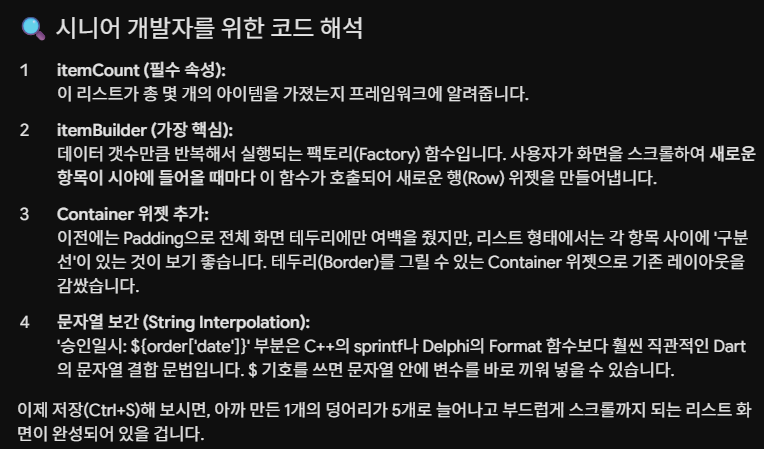
body에 ListView.builder를 만들어서 List의 데이터를 화면에 뿌리는 방법에 대해서 학습
// 상세 화면 위젯
class OrderDetailScreen extends StatelessWidget {
  // Delphi에서 생성자 파라미터로 데이터를 넘기듯, 생성자를 통해 데이터를 받습니다.
  final Map<String, dynamic> orderData;

  const OrderDetailScreen({super.key, required this.orderData});

  @override
  Widget build(BuildContext context) {
    return Scaffold(
      appBar: AppBar(title: const Text('주문 상세 정보')),
      body: Center(
        child: Column(
          mainAxisAlignment: MainAxisAlignment.center,
          children: [
            Text(orderData['title'], style: const TextStyle(fontSize: 24, fontWeight: FontWeight.bold)),
            const SizedBox(height: 10),
            Text('결제 금액: ${orderData['amount']}', style: const TextStyle(fontSize: 20, color: Colors.blue)),
            Text('승인 시간: ${orderData['date']}', style: const TextStyle(color: Colors.grey)),
            const SizedBox(height: 30),

            // MFC의 EndDialog()나 Delphi의 Close와 같은 역할
            ElevatedButton(
              onPressed: () => Navigator.pop(context),
              child: const Text('목록으로 돌아가기'),
            ),
          ],
        ),
      ),
    );
  }
}
// ListView.builder의 itemBuilder 내부 리턴문 수정
itemBuilder: (context, index) {
final order = orderList[index];
return InkWell(
// 1. 클릭 이벤트 리스너 등록
onTap: () {
// 2. Navigator를 통해 상세 화면을 스택에 push
Navigator.push(
context,
MaterialPageRoute(
builder: (context) => OrderDetailScreen(orderData: order), // 데이터 전달
),
);
},
child: Container(
decoration: const BoxDecoration(
border: Border(bottom: BorderSide(color: Colors.black12)),
),
padding: const EdgeInsets.all(16.0),
child: Row(
mainAxisAlignment: MainAxisAlignment.spaceBetween,
children: [
Column(
crossAxisAlignment: CrossAxisAlignment.start,
children: [
Text(order['title'], style: const TextStyle(fontSize: 18, fontWeight: FontWeight.bold)),
const SizedBox(height: 4),
Text('승인일시: ${order['date']}', style: const TextStyle(color: Colors.grey)),
],
),
Text(order['amount'], style: const TextStyle(fontSize: 20, color: Colors.blueAccent, fontWeight: FontWeight.bold)),
],
),
),
);
},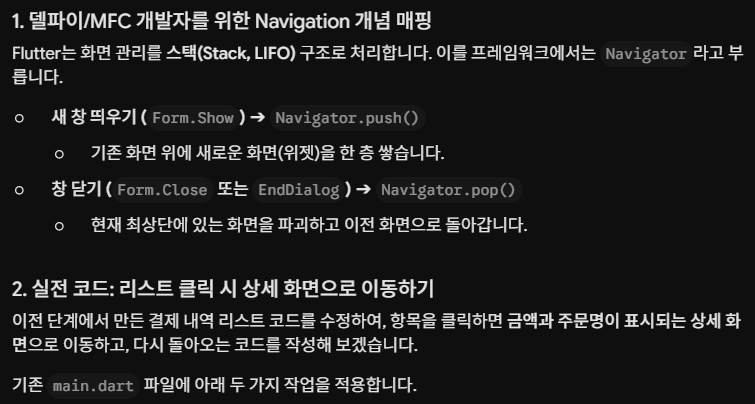
Navigation을 사용해서 화면을 쌓는 동작에 대해 학습(push, pop), InkWell를 사용해서 클릭리스너를 등록가능 OnTap()으로 동작을 만듦
추가로 Fullter는 Debugging때 Dart VM을 띄워서 핫 디로딩을 사용
그래서 코드를 수정하면 스크립트 언어처럼 즉시 반영됨
하지만 Release 때는 네이티브 기계어로 컴파일해서 동작시 속도가 빠름
728x90
'운동하는 개발자 > Flutter' 카테고리의 다른 글
| 13년차 응용프로그래머, Gemini에게 Flutter 배우기 - 6 MVVM (1) (0) | 2026.06.03 |
|---|---|
| 13년차 응용프로그래머, Gemini에게 Flutter 배우기 - 5 SQLite (0) | 2026.05.31 |
| 13년차 응용프로그래머, Gemini에게 Flutter 배우기 - 4 RestAPI (0) | 2026.05.27 |
| 13년차 응용프로그래머, Gemini에게 Flutter 배우기 - 3 (0) | 2026.05.27 |
| 13년차 응용프로그래머, Gemini에게 Flutter 배우기 - 1 (0) | 2026.05.26 |


